

Most GA4 users cannot find the language setting because it is not where you would expect it. It is not in your Google account and it is not in your browser. It is buried inside GA4's Account Settings, and that one detail trips up thousands of people every month. This guide shows you exactly where to go, what to click, and how to fix it if the change does not take effect — all in under five minutes.
| Setting | Where it lives | Controls GA4? |
|---|---|---|
| Google account language myaccount.google.com | Controls Gmail, Google Search, and other Google products | No |
| Browser language Chrome, Firefox, or Safari preferences | Affects how websites display to you — GA4 ignores it entirely | No |
| GA4 interface language GA4 Admin — Account Settings | This is the only setting that controls what language you see in GA4 | Yes — this one |
Before you follow the steps, it helps to understand why this setting confuses so many people. The GA4 interface language is completely separate from two other settings users commonly mistake it for.
Before you dive into the steps, it helps to understand why this setting confuses so many people. The Google Analytics language is completely separate from two other settings users often mistake it for:
This is why you can switch your entire Google account to English and still see GA4 in Dutch, German, or Arabic. The three settings operate independently and changing one does not change the others.
Pro tip: If you manage GA4 for clients across multiple regions Netherlands, Germany, UAE keeping GA4 in English is the cleanest approach for cross-market reporting consistency.
The process is the same whether you want to switch to English, Dutch, German, Arabic, or any other supported language. Follow these steps exactly.
Go to analytics.google.com and sign in with the Google account that has access to your GA4 property.
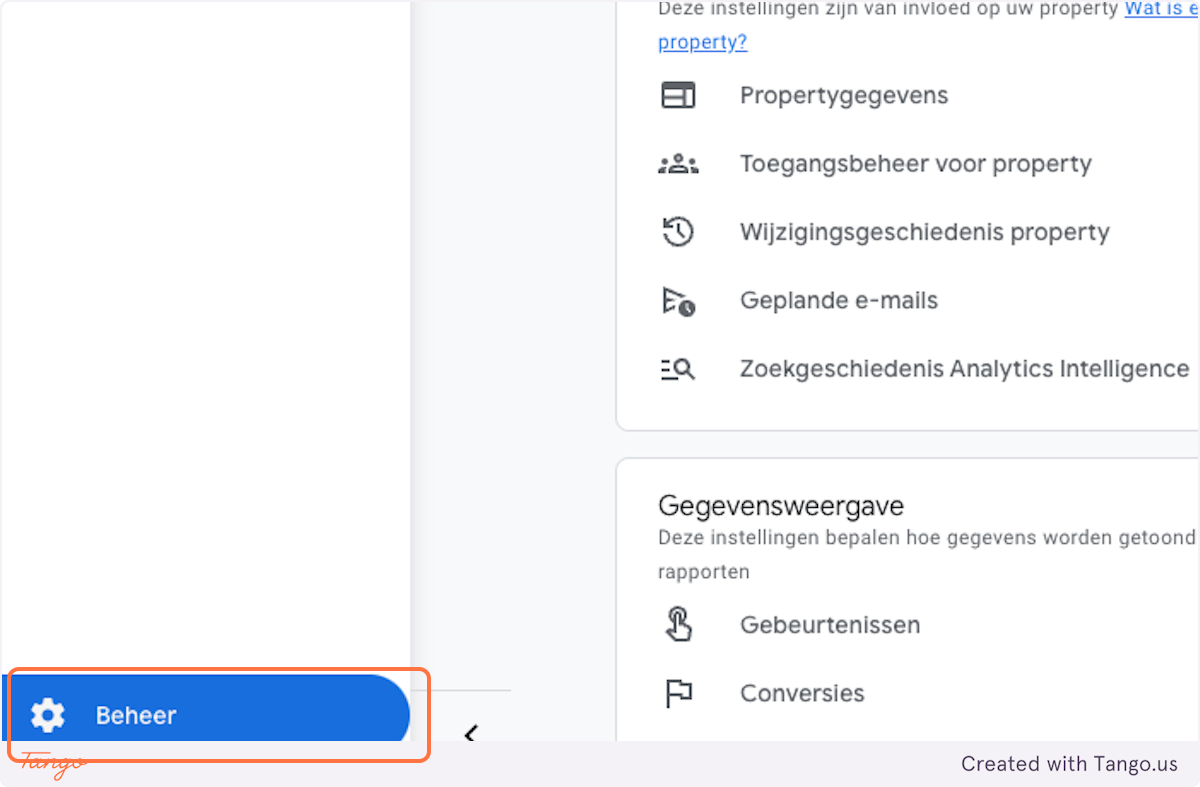
Find the Admin gear icon at the bottom left corner of the GA4 interface. Click it. This opens the Admin pane
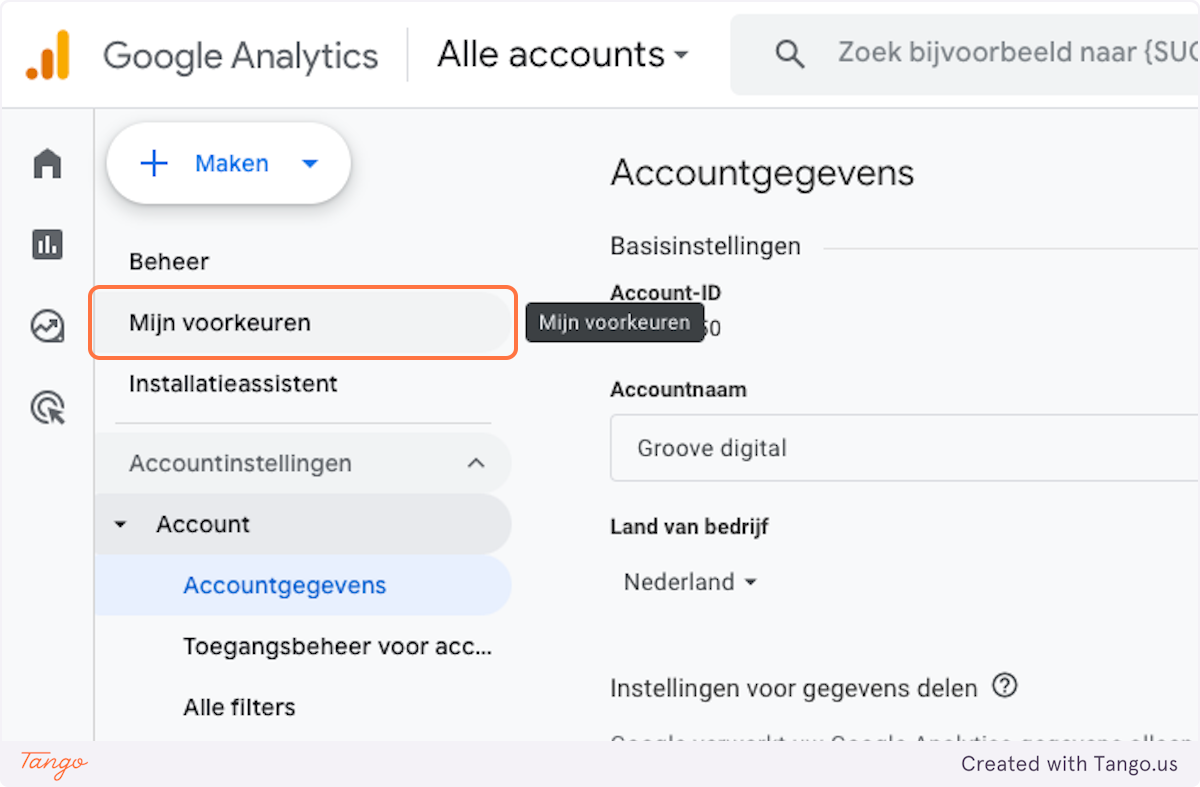
The Admin panel has two main columns: Account and Property. New users frequently click into the Property column by mistake. The language setting lives exclusively under the Account column. Click Account Settings — the first option in the left-hand Account column. If you are in Property Settings, Data Streams, or any Property sub-menu, you are in the wrong place.
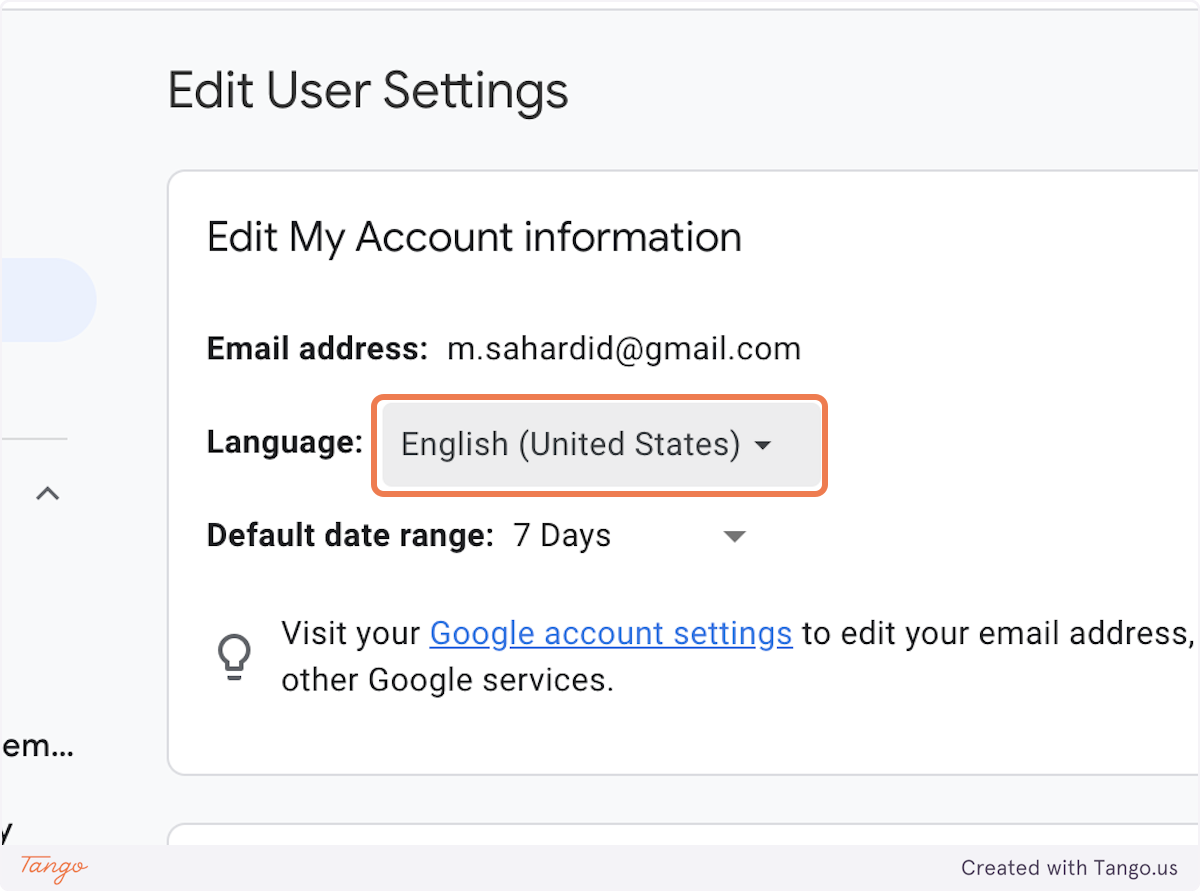
Inside Account Settings, scroll down until you see the Language field. It shows the current language your GA4 account is set to. Click the dropdown arrow next to it to reveal the full list of available languages.
Read more: Top 10+ Expert Tips for Google My Business Optimization
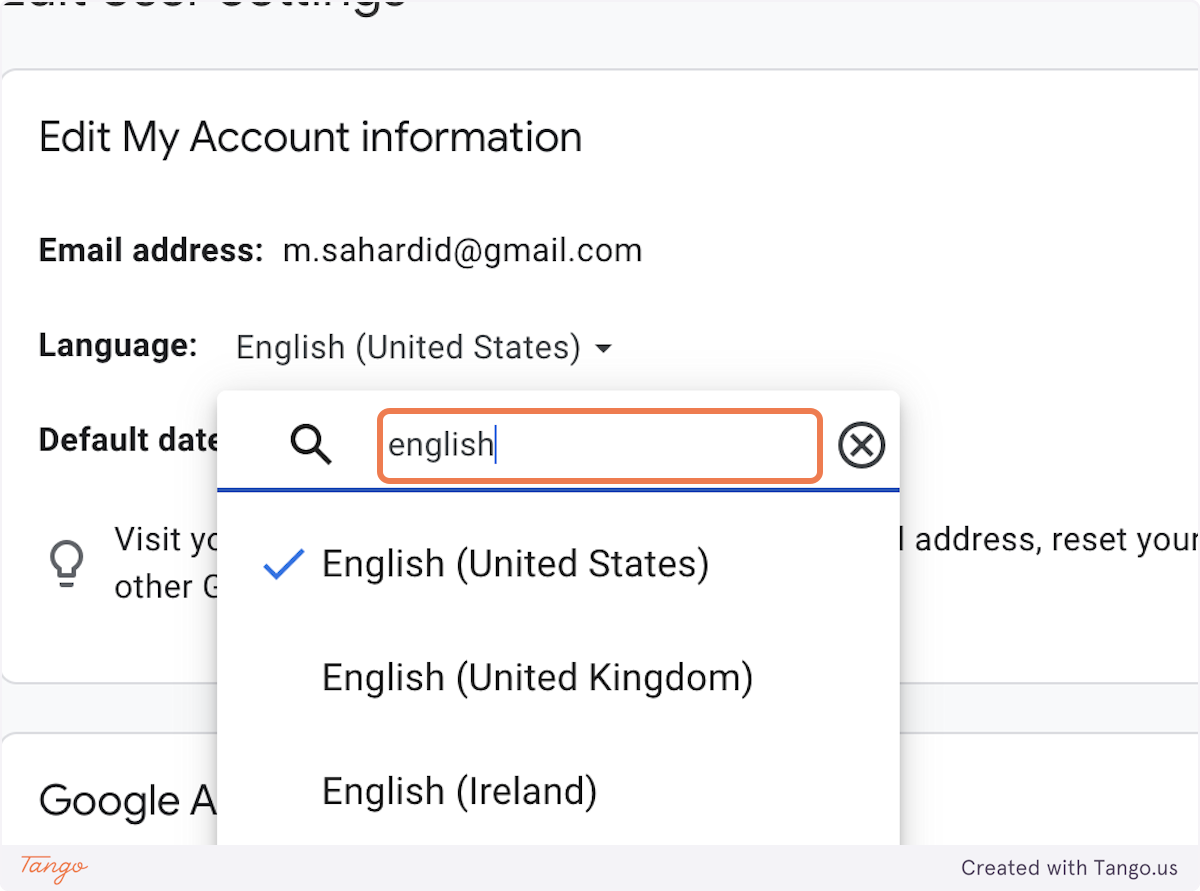
The dropdown includes a search field at the top. Type english to filter the list. For other languages, type the name of the language you want — for example dutch, german, or arabic.
Get to know our SEO Specialist at https://www.sahardid.com/
Select the variant that fits your context. For most international teams working across NL, DE, and UAE, English (United Kingdom) is the recommended choice — it uses consistent date formats and terminology that align with European business conventions. English (United States) is fine if you work primarily with US clients or datasets.
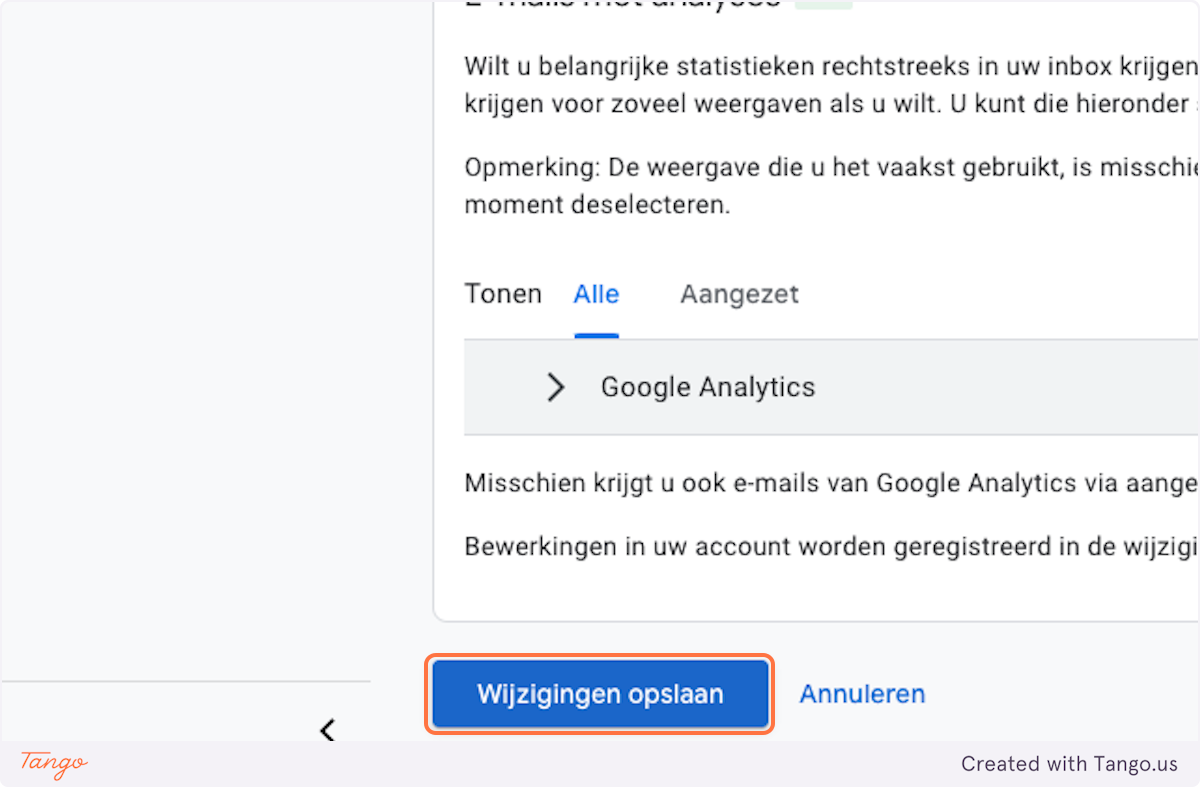
Select the variant that fits your context. For most international teams working across NL, DE, and UAE, English (United Kingdom) is the recommended choice — it uses consistent date formats and terminology that align with European business conventions. English (United States) is fine if you work primarily with US clients or datasets.
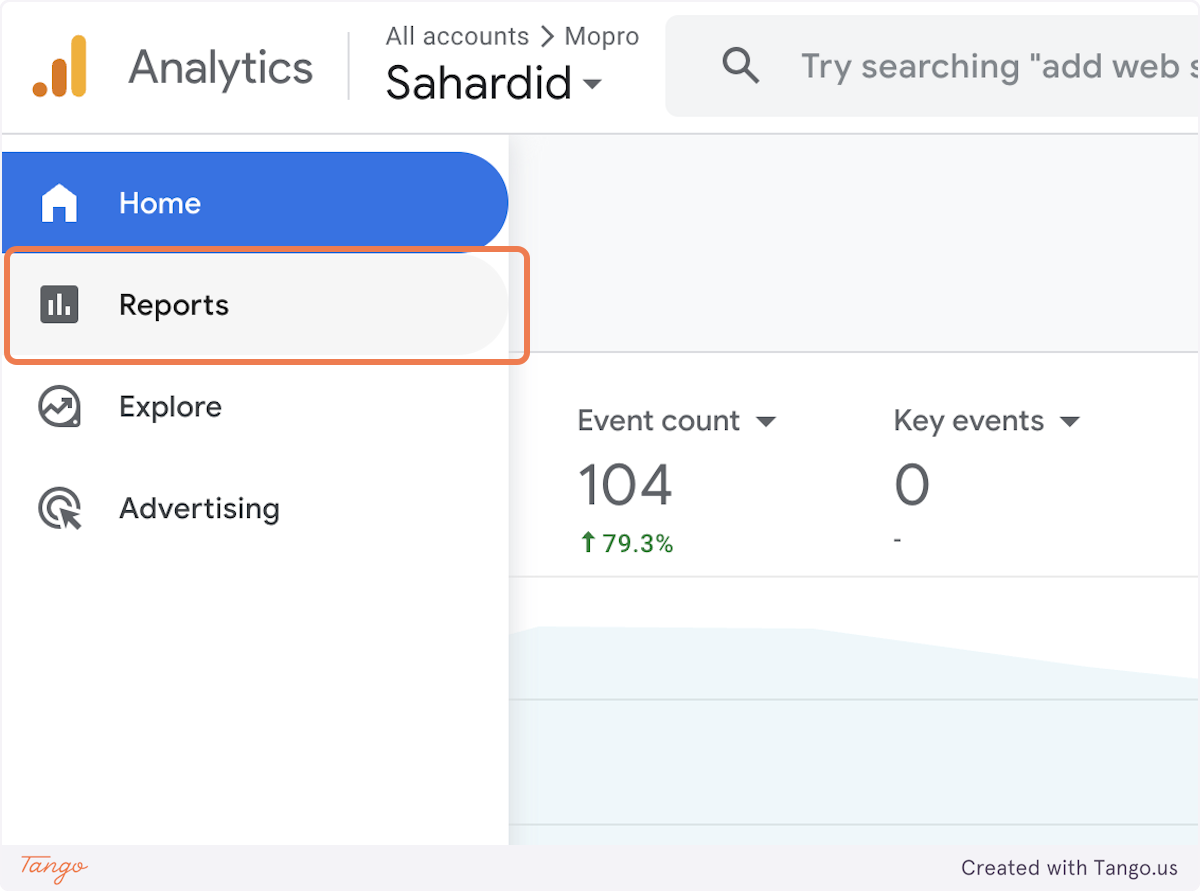
If you manage multiple GA4 accounts, the language setting is account-level. You need to repeat these steps inside each separate account. Changing the language in one account does not affect other accounts you have access to.
Ctrl + Shift + R. On Mac: Cmd + Shift + R. This forces the browser to reload GA4 without any cached version of the page.
Changing the GA4 interface language only changes what you see in the GA4 interface. It does not affect the data GA4 collects. Your reports, metrics, and property data remain exactly the same. It does not change the language of your Google account, Gmail, Google Search, or any other Google product. And it does not change how your website appears to visitors — that is controlled by your site's language settings, not GA4.
If you notice data gaps or tracking inconsistencies after making account-level changes, the issue is unrelated to the language setting. In that case, a proper review of your technical SEO and tracking setup is the right next step. Tracking problems in GA4 are often connected to how Google Tag Manager is configured. The guide on GTM for SEO covers the most common setup mistakes and how to fix them.
Because GA4's interface language is a separate account-level setting. Changing your Google account language does not affect GA4. You need to change the language inside GA4 directly via Admin and then Account Settings. Follow the eight steps above.
Admin gear icon at bottom left, then Account Settings in the Account column on the left side. Not in the Property column. The language dropdown is inside Account Settings. Many users click into Property Settings by mistake — that is the wrong place.
No. Changing the interface language only changes the labels and menus you see. All underlying data, metrics, and historical reports remain completely unchanged.
First, make sure you clicked Save after selecting the new language. Then hard-refresh your browser with Ctrl + Shift + R on Windows or Cmd + Shift + R on Mac. If it still does not update, clear your browser cache completely and log back in. In rare cases, the change can take up to 48 hours to propagate.
I manage multiple GA4 accounts. Do I need to change the language in each one?Yes. The language setting is account-level, not user-level. Each GA4 account has its own language setting. You need to repeat the steps for each account separately.
If you work across European markets like the Netherlands, Germany, or the UAE, English UK is the better choice. It uses day-month-year date formatting and terminology that aligns better with European business conventions. If your primary clients are in the United States, go with English US. For international reporting, consistency is what matters pick one and stick with it across all accounts you manage.